Download Corporate Calendar 2027 Download

 13 minutes
 AI tools for Excel users can reduce repetitive work, explain difficult formulas, identify patterns, and help turn raw spreadsheet data into useful reports. The best results do not come from handing over an entire workbook without review. They come from combining AI assistance with clean data, precise instructions, and a clear checking process.

• Choosing The Right AI Tool For Excel
• Building A Reliable AI Assisted Excel Workflow
• Managing Privacy, Governance, And Change
For most Microsoft 365 users, Copilot in Excel is the most direct AI option because it works inside the workbook. It can assist with formulas, worksheet edits, data summaries, charts, and PivotTables. External assistants such as ChatGPT can also be useful, especially for explaining formulas, planning a data model, or drafting logic before it is placed in Excel.
The right choice depends on the task. A recurring import and cleanup process is often better handled with Power Query. A stable calculation rule is usually best written as a normal Excel formula. AI is most useful when the task is unclear, time consuming, or requires interpretation in plain language.
I recommend treating AI as a drafting and analysis assistant, not as the final approver of important spreadsheet work. This matters for financial models, payroll files, compliance reports, operational forecasts, and workbooks containing personal data.
A dependable process has four parts:
AI can produce a formula that looks correct and still uses the wrong date field, excludes a category, or applies an assumption that was never intended.
Microsoft Copilot in Excel is designed for users who want to ask questions and make changes without leaving the spreadsheet. Microsoft states that Copilot in Excel can generate formulas, edit worksheets, create charts and PivotTables, identify insights, and operate through edit, plan, and chat modes.
Those modes matter because they create different levels of control:
| Mode | Best Use | Main Advantage | Review Consideration |
|---|---|---|---|
| Chat mode | Asking questions about data or formulas | Keeps the work conversational | You still need to apply any suggested change yourself |
| Plan mode | Exploring a multi step task | Shows a proposed approach before changes | Check the plan for assumptions and scope |
| Edit mode | Formatting, sorting, creating fields, or updating ranges | Can make workbook changes directly | Review every applied change, especially in shared files |
For example, a sales manager might ask for a summary of monthly revenue by region, the largest change from the prior month, and a chart suitable for a management report. Copilot can help create an editable result. But the manager should still confirm whether returns, tax, canceled orders, and incomplete records are included correctly.
Copilot is usually the strongest fit when your work is already in Microsoft 365 and you need the AI to understand the active workbook. It may be less suitable when the file contains restricted data that has not been approved for the relevant environment, or when your organization needs a tightly controlled, repeatable transformation process.
Eligibility is not universal. Microsoft notes that Copilot eligibility depends on subscription and account type, and that supported models may vary. Before redesigning a team workflow, confirm the license, platform, tenant settings, and features available to your users.
A general AI assistant can be helpful when you need to think through formula logic before changing a workbook. You might paste a sanitized table structure and ask for a formula that assigns a status based on overdue days, payment amount, and customer tier.
This approach is useful for:
• Translating business rules into a formula design.
• Explaining nested IF, XLOOKUP, LET, FILTER, or SUMIFS formulas.
• Creating sample test cases for a calculation.
• Comparing alternative formulas for readability and maintenance.
• Drafting Power Query transformation steps or VBA macro logic for review.
The limitation is context. An external assistant usually cannot see workbook names, table structures, locale settings, existing formulas, or hidden business assumptions unless you provide them. A formula may be syntactically valid but wrong for your workbook. For example, it may use commas when your regional Excel settings require semicolons, refer to a plain range instead of an Excel Table, or treat blank cells as zero values.
Do not paste confidential customer records, employee identifiers, prices, passwords, or investigation details into an external tool unless your organization has approved that data handling arrangement.
AI does not replace Excel fundamentals. Choose conventional tools when the process needs repeatability, auditability, or dependable refresh behavior.
| Task | Better First Choice | Where AI Still Helps |
|---|---|---|
| Repeated imports from CSV files | Power Query | Describe transformation logic or troubleshoot a step |
| Fixed calculations used every month | Excel formulas or named formulas | Explain, document, or simplify the formula |
| Grouping and aggregation | PivotTables | Suggest useful dimensions or chart choices |
| Repeatable report formatting | Templates, tables, or macros | Draft rules or identify formatting inconsistencies |
| One time exploration of messy data | Copilot or another approved AI tool | Find candidate patterns, outliers, and cleanup ideas |
Power Query is particularly useful for a monthly workflow because it records transformation steps. If a supplier file arrives with inconsistent headers, extra spaces, and mixed date formats every month, a refreshable Power Query process is easier to inspect than repeatedly asking AI to clean the file from scratch.
For broader reporting capability, AI-Enhanced Data Analysis Techniques can help connect spreadsheet tasks with practical approaches to faster business analysis.
AI performs better when the spreadsheet has a clear structure. A workbook with merged cells, blank separator rows, mixed data types, and vague headers forces the tool to guess. That is where errors begin.
Microsoft recommends naming the relevant columns or ranges and refining prompts when a response is inadequate. This is a simple habit with a large practical effect.
Before using AI, check the following:
• Each column has one clear header, such as Invoice Date rather than Date.
• Each row represents one record, transaction, employee, product, or event.
• Dates are real Excel dates, not mixed text values such as 3/4/26, 04 Mar 2026, and March 4.
• Numeric columns do not mix currency symbols, text notes, and numbers.
• There are no blank rows inside the data range.
• Merged cells are removed from the working data area.
• Important data is stored as an Excel Table where possible.
Consider a procurement worksheet with columns labeled Supplier, Value, Date, and Status. The word “Value” could mean contract value, invoice value, or outstanding amount. Rename it before asking AI for a trend analysis. The prompt should say which field matters and what decision the analysis should support.
A strong request tells the AI what data to use, what action to take, what rules apply, and how to present the answer. The goal is not fancy wording. It is removing ambiguity.
Compare these requests:
| Weak Request | Stronger Request |
|---|---|
| Find unusual results | Review the Amount column in the Orders table. Flag records more than two times the median order value, excluding canceled orders. Create a new column called Outlier Review. |
| Clean this data | In columns Department and Job Title, trim spaces, standardize obvious capitalization differences, and list uncertain changes before applying them. |
| Make a chart | Create a clustered column chart of monthly Net Sales by Region for January through June 2026. Exclude blank regions and display values in SGD. |
Notice the control words: excluding, before applying, for January through June, and display values in SGD. These words define the boundaries of the task.
If the request affects a shared workbook, begin with plan or chat mode. Ask the AI to describe the changes it proposes, then review that plan. Move to edit mode only after the intended range and logic are clear.
Formula generation is one of the most useful AI features, but it is also one of the easiest places to accept a plausible error. A formula can calculate correctly on ten rows and fail when it encounters a blank date, duplicate customer, error value, or new category.
Use this review protocol before placing an AI generated formula into an important workbook:
Here is a common failure pattern. You ask AI to calculate commission only for sales above $10,000. It returns a formula using >=10000 rather than >10000. The difference affects only sales exactly equal to $10,000, so the error can remain hidden until a payment dispute arises. Boundary tests are designed to catch that kind of mistake.
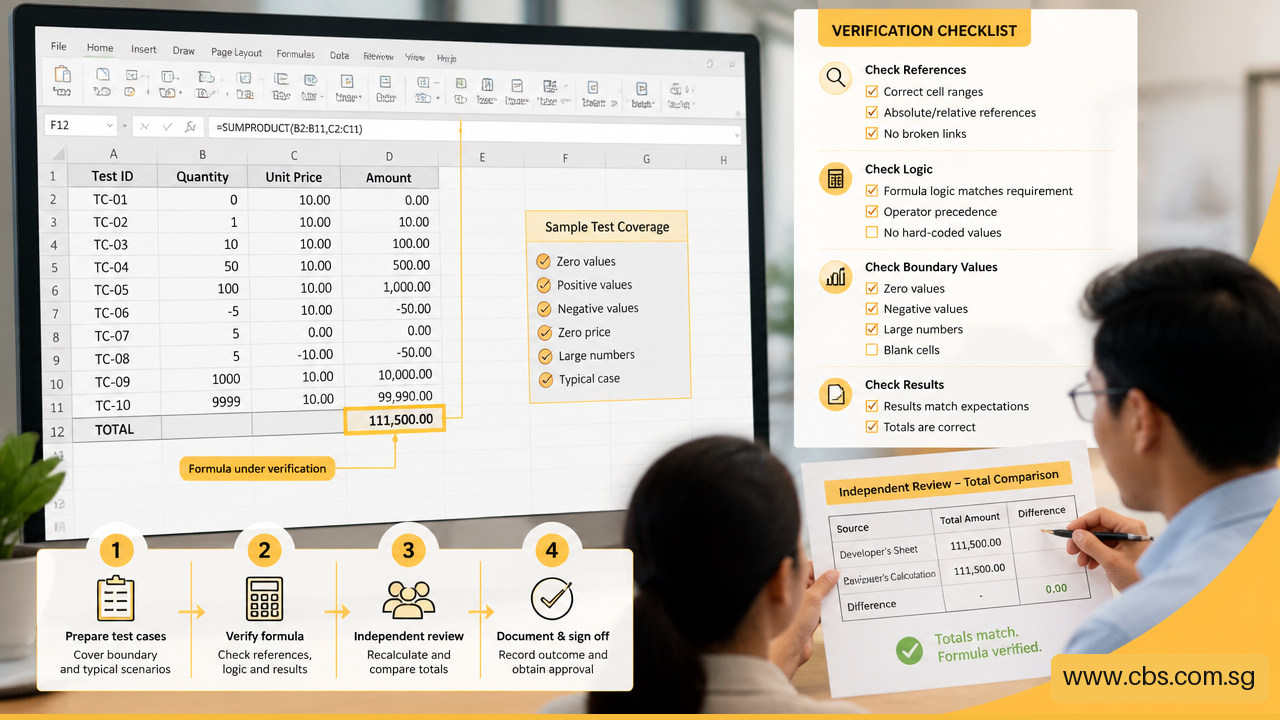
AI may produce an answer quickly, but quick output is not the same as a faster process. A realistic measurement includes time spent preparing data, writing instructions, reviewing results, correcting mistakes, and explaining changes to colleagues.
Track a small pilot over several reporting cycles:
| Measure | What To Record |
|---|---|
| Preparation time | Time spent restructuring data or removing errors before AI use |
| AI interaction time | Time spent writing requests and refining results |
| Review time | Formula checks, source checks, and stakeholder validation |
| Rework time | Corrections needed after errors or changed requirements |
| Final cycle time | Total time from raw data to approved output |
This method avoids exaggerated savings claims. If an AI generated dashboard takes five minutes to create but requires forty minutes of correction, the workflow needs redesign. It may still be valuable for exploration, but not yet for routine reporting.
For users building capability across Microsoft apps, Microsoft 365 Copilot for Productivity offers related context on applying Copilot to everyday work.
The safest AI workflow depends on what the workbook contains and who can access it. Classify the spreadsheet before uploading, sharing, or connecting it to any AI service.
| Data Type | Example | Practical Approach |
|---|---|---|
| Low sensitivity | Public product catalog or published survey results | AI can support exploration, subject to normal accuracy checks |
| Internal business data | Budget drafts, sales pipeline, operational metrics | Use approved accounts, access controls, and review procedures |
| Personal or confidential data | Employee records, customer contact details, health information, investigation notes | Minimize data exposure, seek internal approval, and avoid unapproved external tools |
For Singapore organizations, spreadsheets containing personal data should be handled with the Personal Data Protection Act in mind. The exact control needed depends on the data, purpose, contracts, retention rules, and organizational policies. There is no single Singapore specific AI in Excel workflow that fits every organization.
A practical example: an HR team wants help finding duplicate employee records. Instead of sending names, identification numbers, and salary data to an unapproved tool, the team could first use internal controls, work with an approved environment, or test logic using masked data. The aim is to validate the process without exposing unnecessary information.
AI makes changes quickly. That creates a governance issue when several people use the same workbook. A conditional formatting rule or new data validation list may appear harmless, yet it can alter reporting behavior for everyone.
Use a simple control model:
• Assign a workbook owner for critical files.
• Keep a protected original or use version history before major AI edits.
• Record the purpose of new formulas, transformations, and data fields.
• Require a second reviewer for financial, regulatory, payroll, or safety related outputs.
• Use a test copy before changing a live shared workbook.
AI features in Excel are evolving. Do not build a critical process around a preview function without a fallback method. Microsoft documents that the preview COPILOT worksheet function is planned for discontinuation in September 2026 and directs users toward the Copilot pane as the continuing route for that capability.
That is a useful reminder to document your process in plain Excel terms. If an AI feature changes, the workbook should still have understandable data sources, formulas, transformation steps, and approval rules.
Copilot in Excel is the most direct option for Microsoft 365 users who need AI inside a workbook. General AI assistants can help explain formulas and plan logic. Power Query, PivotTables, formulas, and macros remain better choices for many repeatable tasks. The best tool depends on the data, risk level, and whether the process needs to be repeatable.
Neither is always better. Copilot is more suitable when you want assistance with the active workbook, such as creating a chart or editing a table. A general assistant can be useful for discussing formula logic or creating a test plan outside the workbook. Use only approved tools when data is confidential or personal.
Yes, AI can draft formulas from a plain language description. Still, check references, conditions, date handling, blanks, and boundary values. Treat the formula as a first draft until it passes test rows and independent total checks.
Yes. Formula explanation is especially useful for long nested formulas, lookup logic, and calculations built by another employee. Ask for an explanation of each condition, the purpose of each range, and examples of inputs that would trigger different results.
It may identify suspicious patterns, missing values, duplicates, inconsistent formatting, or formulas that look unusual. It cannot guarantee that a workbook is error free. Business logic errors are difficult because the AI may not know the policy or assumption behind a calculation.
Yes. Copilot can assist with those tasks, but chart choice still needs human judgment. A chart can be technically accurate yet misleading if it uses the wrong scale, omits a key category, or compares incomplete time periods. Always confirm the source range and filters.
Some functions and workflows may have cloud storage requirements. Microsoft documentation indicates that certain Copilot workflows require workbooks to be saved in OneDrive with AutoSave enabled. Check the current requirements for your Microsoft 365 account and the specific Excel platform you use.
Do not delegate final approval of payroll, legal calculations, regulatory reporting, safety decisions, or high impact financial decisions to AI. AI can support drafting, checking, and analysis, but accountable people should verify the data, assumptions, and final output.


https://www.cbs.com.sg/ai-tools-for-excel-users-a-practical-guide-for-2026-2/
copy

