Download Corporate Calendar 2027 Download

 14 minutes
AI tools for Excel users can make formulas, reporting, data cleanup, and analysis easier to manage. The best results do not come from handing over a workbook and trusting every output. They come from pairing AI assistance with clear data, sound Excel skills, and a reliable review process.

AI works best in Excel when it acts as an assistant rather than an automatic decision maker. You can ask it to draft a formula, flag unusual values, create a PivotTable, or explain an error. You still need to decide whether the output fits the business question, uses the right range, and follows your organization’s rules.
Table Of Contents
There is no single “best” AI tool for every Excel job. The right choice depends on where your data sits, how much workbook editing you need, whether the work must be auditable, and how sensitive the information is.
Copilot in Excel is designed to work within Excel rather than simply produce text in a separate chat window. Microsoft states that Copilot can edit worksheets, generate formulas, create charts and PivotTables, identify insights, and support repeatable workbook tasks through Copilot’s Excel based workbook actions.
This makes it a practical option when your work involves an active workbook and you want help with actions such as:
• Creating a calculated column from an existing table
• Formatting a report range consistently
• Building a chart from selected data
• Summarizing sales, costs, attendance, or operational records
• Creating or adjusting a PivotTable
• Applying filters, data validation, or conditional formatting
Use Excel native AI when you need the result to become part of the workbook. A formula placed in a cell, a chart linked to a table, or a PivotTable with editable fields is usually more useful than a paragraph copied from another tool.
Fair warning: access is not automatic for every Microsoft 365 user. Microsoft explains that Copilot in Excel access depends on an eligible Microsoft 365 license or subscription. Features can also vary by account, tenant settings, app version, and organizational rollout. Check availability before redesigning a workflow around it.
A general AI assistant can be useful when you need to think through a formula before adding it to Excel. For example, you might ask for a formula that labels an invoice “Overdue” when its due date is earlier than today and its payment status is not “Paid.”
This is a good fit when you need:
• A plain English explanation of XLOOKUP, SUMIFS, LET, or FILTER
• A draft formula based on a clearly described worksheet layout
• Help interpreting an error message such as #N/A, #VALUE!, or #SPILL!
• Suggestions for dashboard metrics or report headings
• An outline for a VBA macro or Office Script that a qualified reviewer will inspect
Avoid pasting sensitive customer, employee, financial, legal, or security data into a tool unless your organization has approved that use. Also avoid treating a chat response as a finished workbook solution. A general assistant cannot reliably see your actual table names, data types, hidden sheets, or calculation settings unless those details are supplied.
The more serious the decision, the stronger the controls should be. A weekly internal tracker has a different risk profile from a payroll workbook or a financial model used in a board report.
Task Type | Suitable AI Role | Human Control Needed |
|---|---|---|
Personal task list | Draft formulas and organize data | Quick spot check |
Team operations report | Summarize trends and build visuals | Review sources, totals, and filters |
Finance or compliance report | Assist with draft formulas and documentation | Independent checking and approval |
Sensitive employee or customer data | Only use approved tools and environments | Follow data governance requirements |
A helpful rule is simple: if an incorrect number could trigger a payment, compliance action, staffing decision, or public statement, do not accept AI output without documented review.
AI can only reason from what it can interpret. A messy worksheet forces it to guess. That is how a sensible request can lead to a misleading result.
Before asking AI to analyze data, convert the relevant range into an Excel table where appropriate. Tables give columns clear names and make references easier to read. They also reduce the chance that a formula accidentally stops at row 200 when new data reaches row 201.
Check these items first:
Consider a simple example. A column called “Sales” contains values such as 1,200, 1.200, $1,200, and TBD. A person may understand that these are intended to represent revenue. Excel and AI may not treat them the same way. Clean the column before asking for totals, average sales, or outlier detection.
Broad requests invite broad answers. “Analyze this worksheet” is vague. A better request identifies the data, the goal, and the desired output.
“Using the Sales table, compare monthly revenue by region for 2025. Identify the two largest month to month declines, exclude blank regions, and create a column chart.”
This request gives the assistant a target table, a time period, a grouping field, a calculation, an exclusion rule, and an output format. It is easier to inspect because you can check each part against the workbook.
When asking for formulas, include the exact column names and the desired rule. For example: “In the Orders table, create a formula in the Status column that returns ‘Review’ when Margin is below 10% or Delivery Days is greater than 7; otherwise return ‘OK.’”
For ongoing reports, keep a simple change log in a separate worksheet. Record the source file, refresh date, requested task, resulting formula or workbook change, reviewer, and approval date.
This is workbook provenance: the trail that lets another person understand where a number came from. It is especially valuable when a workbook changes every month. Without it, a future reviewer may see a formula but not know whether it was manually written, generated with AI, or altered after an exception was found.
For teams that want structured practice in this area, AI-powered Excel: Harness AI for Maximum Productivity focuses on applying AI capabilities to Excel work.
AI can reduce the friction of routine spreadsheet work. Its most useful role is often not replacing analysis, but accelerating the early steps: structuring data, drafting logic, finding patterns, and creating an initial report that you can refine.
Formula generation is valuable when the business rule is clear but the syntax is not. Ask for formulas that use structured references when you work in an Excel table. These references are easier to interpret than long cell based formulas because they use column names.
Suppose an expense report needs to classify claims. A formula can check whether the amount exceeds a limit, whether a receipt is attached, and whether the category is allowed. AI may draft the logic quickly, but you should still inspect the order of conditions. If the “missing receipt” test comes after a broader “approved” test, some exceptions could be missed.
Microsoft notes that Copilot can surface summaries, trends, outliers, calculated columns, and explanations of generated formulas. The explanation matters. Ask what each condition does, which cells or columns it references, and what happens when a value is blank.
AI can help turn rows into usable visuals. It may suggest a chart, create a PivotTable, or summarize differences between regions, periods, products, or teams. But a chart is only as trustworthy as its aggregation.
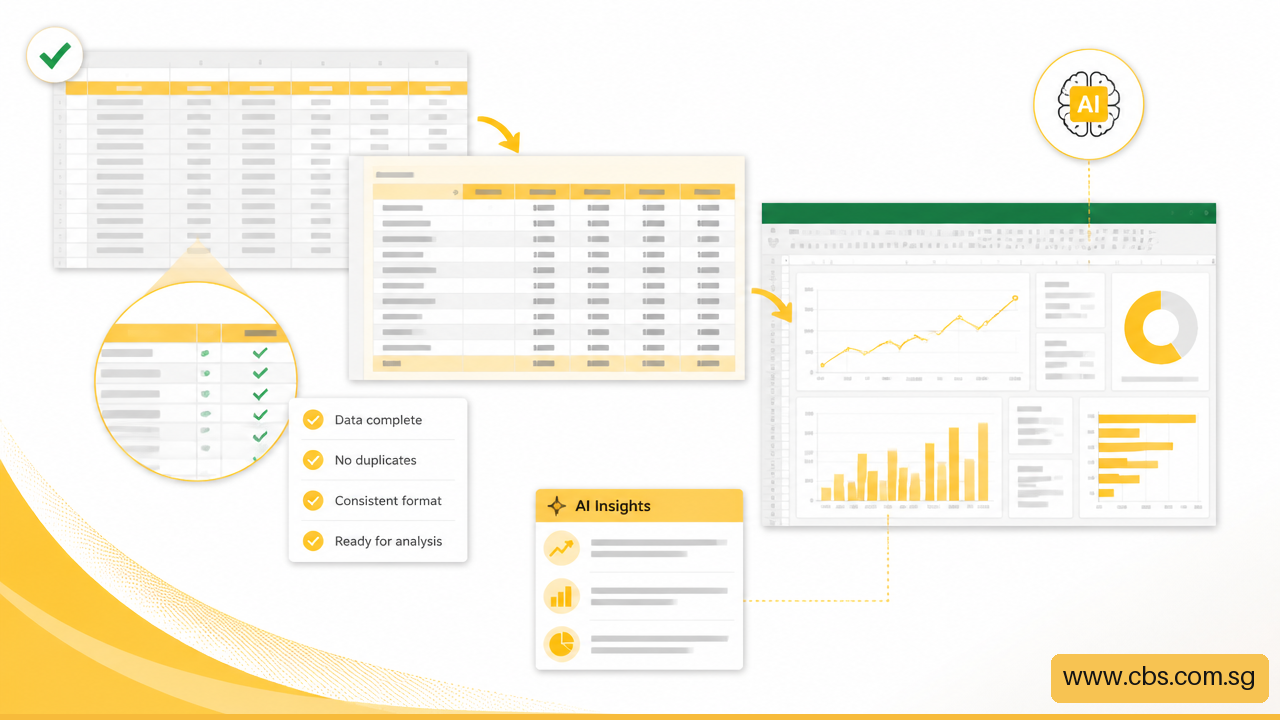
For example, a rising average order value may look positive until you check volume. If total orders fell sharply, the increase could reflect fewer low value purchases rather than stronger performance. Ask for both measures, then inspect the source table and chart filters.
Use AI for dashboard preparation when you need to:
• Suggest relevant KPIs from a well defined dataset
• Create a first draft of a chart and accompanying summary
• Identify potential outliers for investigation
• Build a PivotTable that you can rearrange and filter
• Format a recurring management report consistently
For stronger Excel reporting fundamentals, Creating Dynamic and Insightful Dashboards with Excel can complement AI assisted dashboard work. AI may create a starting point, but a useful dashboard still needs a clear audience, meaningful measures, and clean source data.
Repeatable tasks are where AI assistance can become more consistent. Microsoft describes Copilot skills for repeatable reconciliation, analysis, and workbook formatting tasks. The value is not merely speed. A repeatable process can reduce variation when many people prepare the same monthly workbook.
Start with low risk, repeatable actions. Examples include standardizing date formats, applying a known report layout, highlighting missing fields, or generating a first pass reconciliation summary. Define the input, expected output, exception rules, and approval step before wider use.
Do not automate a workflow simply because it can be automated. If the process contains unclear judgment calls, inconsistent source files, or policy exceptions, automation may make mistakes faster. Fix the process definition first.
Also note a product lifecycle detail that can affect planning. Microsoft’s documentation says the preview COPILOT worksheet function was scheduled to become unavailable from September 14, 2026, while the Copilot pane remains available for related tasks. Avoid building a critical workbook process around a preview feature without a fallback method.
For office teams looking beyond spreadsheets, Generative AI Tools Every Office Administrator Must Know offers broader context for using generative AI in routine administrative work.
An AI generated answer can look polished and still be wrong. It may use the wrong date field, omit filtered records, treat text as numbers, or choose a chart that hides the real pattern. Verification is not an optional final step. It is part of the workflow.
Do not test a new formula only on the first row where it appears to work. Create a few known cases and compare the result with what you expect.
Use this four part check:
If a formula classifies claims above $500 for review, test $499.99, $500, $500.01, blank, text, and negative values. This exposes whether the logic uses > or >=, whether blanks are treated as zero, and whether errors are handled.
When AI identifies an outlier or trend, ask what calculation and comparison group produced it. An “unusual” value could be a genuine problem, a one time event, or a data entry issue.
Review these points before sharing an AI assisted chart or summary:
• The source table and selected range
• Filters, exclusions, and date period
• Whether totals, averages, medians, or counts were used
• The treatment of blanks, duplicates, and missing values
• Chart titles, axis labels, units, and aggregation level
• Whether the conclusion matches the underlying numbers
A practical recovery step is to keep the prior approved version of a workbook. If an AI edit changes formulas or formatting in unexpected ways, you can compare versions, restore the affected range, and document the issue rather than trying to reconstruct the original logic from memory.
No single public rule covers every organization’s AI use. Requirements may depend on contracts, industry obligations, internal policy, and the type of data involved. In Singapore and elsewhere, it is sensible to confirm approved tools, retention settings, access controls, and data handling requirements before uploading business information.
For a sensitive workbook, minimize the data you expose. Use a masked or sample dataset when testing a workflow. Remove direct identifiers where possible. Keep final decisions with accountable staff, particularly for employment, financial, legal, security, or regulatory matters.
• Choose Excel native AI when you need formulas, charts, PivotTables, or edits inside a live workbook.
• Use general AI assistants for formula explanations, draft logic, and problem framing when approved by your organization.
• Prepare tables before analysis by fixing headers, data types, blanks, duplicate records, and unclear ranges.
• Write requests that define the dataset, time period, calculation, exclusions, and output you want.
• Test generated formulas with normal, boundary, blank, and exception cases.
• Review every analytical output against the source data before using it in a decision or report.
Begin with a recurring, low risk task such as formatting a report or explaining an existing formula. Once the process is clear, document the inputs, prompts or instructions, review steps, and expected output. That creates a safer path toward broader spreadsheet automation.
Copilot in Excel is a strong choice for users who need help directly inside Excel with formulas, workbook edits, charts, PivotTables, and analysis. A general AI assistant can be useful for explaining formulas or drafting logic outside the workbook. The best choice depends on data sensitivity, licensing, workbook complexity, and how much review the task requires.
Yes. AI can draft a formula from a detailed description of your rule and worksheet structure. Give it exact table and column names, the expected result, and any blank or exception rules. Then test the formula on known records before filling it down a full column.
Often, yes. Share the formula, the error type, and a non sensitive example of the relevant values. AI can help identify issues such as mismatched data types, missing lookup values, invalid references, or spilled array conflicts. It should not replace checking the actual referenced cells.
Copilot in Excel can create charts and PivotTables from workbook data. Review the selected range, measure, grouping field, and filters afterward. A chart can be technically correct but still answer the wrong question if it uses average values instead of totals or excludes a key period.
It depends on the tool, your organization’s approved environment, contracts, access settings, and data governance rules. Do not assume that a consumer AI service is approved for confidential data. When in doubt, use masked data, seek internal guidance, and limit access to the minimum information needed.
Different rows may contain blanks, text instead of numbers, inconsistent dates, duplicate keys, or values outside the expected range. A formula can also use relative references that shift incorrectly when copied. Test rows with unusual values and inspect the references in both the working and failing rows.
Use the Copilot pane for interactive workbook assistance and editable actions in Excel. Do not depend on the preview COPILOT worksheet function for a long term process, because Microsoft documented its planned unavailability from September 14, 2026. Build important logic with standard Excel formulas and maintainable workbook structures.


https://www.cbs.com.sg/ai-tools-for-excel-users-smarter-analysis-and-safer-workflows/
copy

