Download Corporate Calendar 2027 Download

 13 minutes
 Create engaging presentations by treating every slide as part of a decision journey. I recommend starting with one clear message, designing only what the audience needs to understand it, and ending with a practical next step. A polished slide deck is useful, but attention comes from relevance: people need to see why the topic matters to them.

Table Of Contents
An engaging presentation does not simply transfer information. It helps an audience move from a current understanding to a new conclusion, decision, or action. Before opening presentation software, decide what you want people to think, feel, or do when the session ends.
I suggest writing one sentence in this format:
After this presentation, I want the audience to \_\_\_\_\_\_ because they understand \_\_\_\_\_\_.
For example: “After this presentation, I want department leaders to approve a pilot program because they understand the cost of doing nothing.” This sentence becomes a filter. If a slide does not help the audience reach that action, move it to an appendix, speaker notes, or a follow up document.
Build an audience persona before building the slide deck. You do not need a complex profile. Clarify three things:
• What does the audience already know?
• What concern, objection, or risk might slow their decision?
• What evidence would make the next step feel reasonable?
A technical team may need assumptions, definitions, and data sources. Senior leaders may need the decision, risk, cost, and expected outcome first. A mixed audience often needs both, delivered in layers. Put the main point on the slide, then keep methodology and detailed evidence available in speaker notes or backup slides.
This is called message hierarchy. Not every fact deserves the same visual weight. When every item is large, bold, and colorful, nothing feels important.
A presentation needs movement. One practical structure is situation, challenge, and solution. Microsoft PowerPoint describes an interactive presentation narrative that can establish a situation, introduce an obstacle, and guide people toward a solution through a situation, challenge, and solution storyline.
Use that model to shape the body of your talk:
Consider a presentation about reducing customer response time. A weak opening starts with a definition of service quality. A stronger opening begins with a visible problem: “Customers now wait two days for an answer that should take two hours.” The next slides show the process bottleneck, the impact, the proposed change, and the decision needed.
A story does not need to be personal or dramatic. In a workplace setting, a well chosen scenario can do the job. Explain a real type of decision, show the tension, then show what changes when the decision is made.
The opening minute should accomplish three jobs: establish relevance, set expectations, and create a reason to continue listening. Avoid spending it on a long agenda, organizational history, or a dense title slide.
Choose an opening approach based on your purpose:
Presentation Goal | Strong Opening Choice | When To Avoid It |
|---|---|---|
Create urgency | A specific problem or consequence | Avoid exaggerated claims you cannot support |
Teach a process | A common mistake or quick diagnostic question | Avoid questions with no clear connection to the lesson |
Seek a decision | A concise recommendation and the decision needed | Avoid revealing the recommendation before essential context in sensitive settings |
Build alignment | A short scenario showing competing priorities | Avoid stories that take too long to reach the point |
State the destination early. For example: “By the end of this session, you will be able to identify the three decisions that improve response time without adding headcount.” The audience can now organize incoming information around a known purpose.
Good presentation design reduces unnecessary mental effort. Viewers should quickly recognize what matters, how ideas connect, and where to look first. This is not about making every slide decorative. It is about making the meaning easier to process.
A slide can contain several facts, but it should make one main point. Ask: _If people remember only one sentence from this slide, what should it be?_ Put that sentence in the title whenever possible.
Compare these two titles:
• “Customer Survey Results”
• “Slow Response Time Is The Main Driver Of Customer Frustration”
The second title tells the audience what to notice before they inspect the chart. That is data storytelling: data, context, and a conclusion working together.
Visual hierarchy directs attention through size, placement, contrast, white space, and typography. Make the key figure or claim easiest to see. Keep supporting details quieter. For more practical guidance on applying hierarchy, layout, and visual polish, review these PowerPoint design techniques for professional slides.
Images, diagrams, charts, and short videos can help an audience follow an explanation when they have a clear purpose. Adobe Express notes that images, videos, and infographics can support spoken explanation and add visual interest in its guidance on visual aids for engaging presentations.
Use the visual format that best fits the thinking task:
If The Audience Needs To Understand | Use | Design Choice |
|---|---|---|
A sequence | Process diagram or timeline | Reveal stages in the order discussed |
A comparison | Side by side layout or bar chart | Highlight the meaningful difference |
A relationship | Flowchart or systems map | Label arrows with what moves or changes |
A trend | Line chart | Mark the turning point and explain it |
A decision | Simple decision tree | Show criteria before the recommended path |
Avoid stock imagery that merely fills empty space. A photograph of people in a meeting rarely explains a process. A labeled screenshot, before and after example, or simple annotated diagram usually does more useful work.
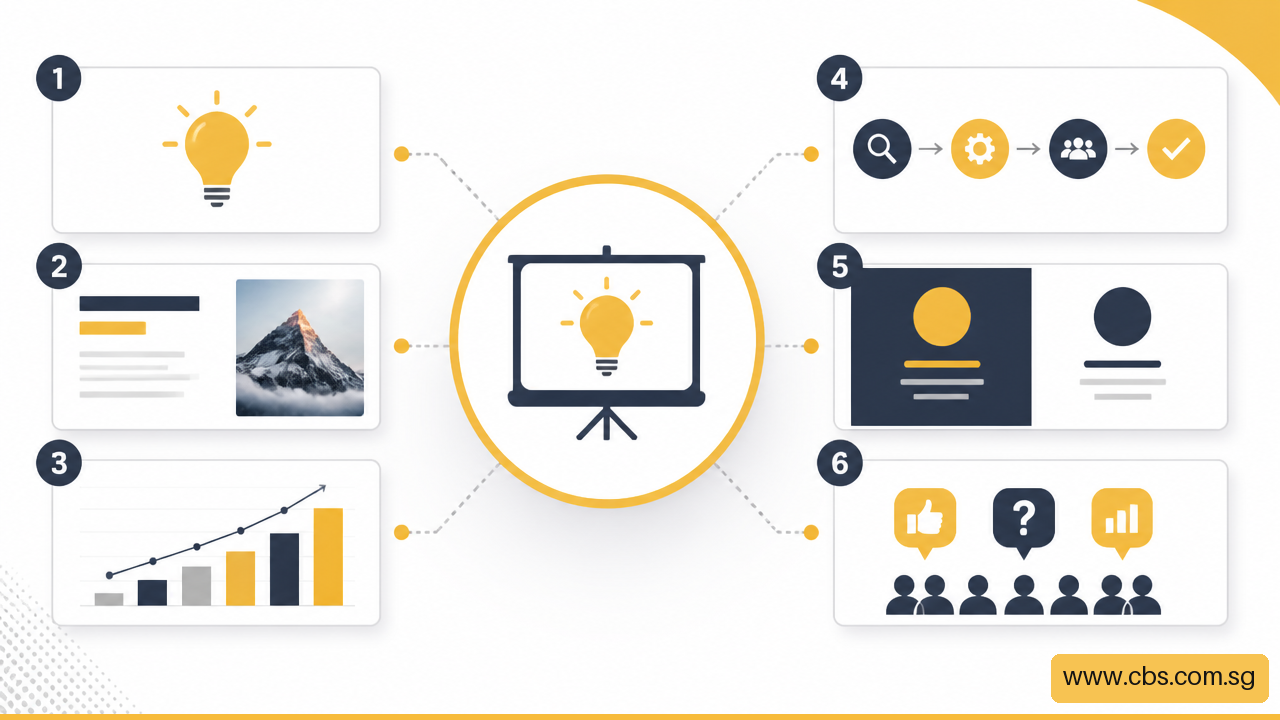
“Use less text” is helpful but incomplete advice. In legal, technical, financial, scientific, or policy presentations, details may be necessary. Units, caveats, confidence limits, definitions, and source notes can change the meaning of a conclusion.
The better approach is progressive disclosure. Show the headline first, explain the evidence next, and provide deeper detail only when it becomes relevant. A chart can display a clear conclusion on the main slide while the full data table sits in an appendix. A process overview can stay simple while a handout contains the operational steps.
Use visible text for what viewers need _during_ your explanation. Use speaker notes for your prompts, transitions, and exact wording. Use a follow up document for reference material people need _afterward_.
This division protects attention without hiding important facts. It also helps people who review the material later, when your narration is no longer available.
A slide that looks clear on a laptop may fail in a bright room, on a distant projector screen, or inside a small video call window. Before presenting, check the actual delivery environment where possible:
• Screen size, room depth, lighting, and viewing distance
• Audio quality, especially for remote participants
• Internet reliability for polls, video, and cloud based decks
• Color contrast and whether meaning depends only on color
• Captions, transcripts, and verbal descriptions for important visuals
• Motion, animation, or flashing effects that may distract or create discomfort
Microsoft PowerPoint also recommends considering projector accessibility, cohesive color choices, and simple sans serif fonts in its presentation design guidance. Test from the back of the room, not just from the presenter’s seat.
For hybrid sessions, give remote attendees the same path to participate. If people in the room can raise a hand, remote attendees should be able to answer in chat, through a shared poll, or by voice. If they cannot see a physical whiteboard, share the content digitally as well.
Interaction is most effective when it helps the audience think, decide, practice, or reveal what they need. It should not be decoration added between slides.
Every interactive element should answer a question. A poll can reveal a starting point. A scenario can test judgment. A discussion can surface tradeoffs. A quiz can check comprehension.
Method | Best Use | Risk To Manage |
|---|---|---|
Show of hands | Quick temperature check in a room | Some participants may follow the group |
Live poll | Anonymous opinions or knowledge checks | Requires device access and connectivity |
Chat prompt | Hybrid or online responses | Fast comments can become hard to moderate |
Pair discussion | Applying a concept to a realistic case | Needs a clear time limit and reporting method |
Short quiz | Checking understanding before moving on | Can feel like a test if the tone is punitive |
Microsoft PowerPoint notes that presenters can involve people through polls, show of hands questions, online chat, and discussion in interactive presentation formats for in person and online audiences. Genially also lists quizzes, games, videos, hotspots, pop ups, and interactive data visualizations among possible formats in its overview of interactive presentation features.
Choose the simplest method that serves the goal. If you only need a quick yes or no, a show of hands is faster than launching a polling platform. If anonymity matters, use a poll. If the topic requires judgment, a scenario followed by a brief discussion may reveal more than a quiz.
Fair warning: a perfect interaction plan can fail in a live setting. A poll may not load. A video may have no sound. The audience may be quiet. Build a fallback plan before the session begins.
For each interactive moment, prepare:
If no one answers an open question, do not repeat it louder. Offer a smaller prompt: “Choose one of these two options,” or “Take 20 seconds to write one concern.” Silence can mean uncertainty, limited time to think, unclear instructions, or reluctance to speak publicly. It does not automatically mean disinterest.
For video, keep a still image and a one sentence summary ready. For a cloud deck, save a local copy. For crucial data, bring a PDF backup. These are simple preparations, but they protect your credibility when technology becomes the focus.
Rehearsal is how you test the presentation as an audience experience. Practice the opening aloud, time each section, and notice where a transition feels abrupt. Record a run through if possible. You are not trying to sound memorized. You are trying to make your structure familiar enough that you can respond naturally.
I recommend rehearsing in three passes:
Measure engagement beyond applause or the number of poll responses. Useful indicators include whether people can restate the main point, make the requested decision, complete the intended next step, or ask more focused questions. Participation is an activity measure. Understanding and follow through are outcome measures.
• Start with one audience action, not a collection of disconnected topics.
• Use a narrative arc that moves from situation to challenge, insight, resolution, and action.
• Give every slide one clear job and make its main conclusion visually obvious.
• Use visuals to explain relationships, processes, comparisons, or decisions.
• Keep essential technical detail, but reveal complexity in stages.
• Design for the real room, remote platform, devices, and accessibility needs.
• Use interaction to collect useful information or help participants apply an idea.
• Prepare alternatives for technology failures, low participation, and time pressure.
• End with a specific call to action, owner, deadline, or next decision.
An engaging presentation gives people a reason to pay attention and a way to use what they learn. It combines a clear message, meaningful examples, understandable visuals, and opportunities to think or respond. Information alone can be accurate yet forgettable if the audience cannot see why it matters or what to do with it.
Use only the text people need to read while you speak. Short phrases, labels, and a strong takeaway title often work better than paragraphs. However, do not remove essential definitions, units, caveats, or compliance details just to make a slide look minimal. Put supporting detail in notes, an appendix, or a handout when appropriate.
Lead with the conclusion, then show only the data needed to support it. Highlight the relevant bar, trend, or comparison. Define unfamiliar terms and explain what decision the numbers should influence. If people need full tables for review, provide them separately rather than forcing the audience to read them during your talk.
Use a poll when you need a quick view of opinion, confidence, or priorities. Use a quiz when you need to check understanding. Use an open question or discussion when there may be several reasonable answers. Avoid interaction when it does not change the discussion, inform a decision, or help people apply the content.
The best tool depends on your delivery setting and the interaction you need. PowerPoint can support polls, chat based participation, and familiar presentation workflows. Genially offers features such as hotspots, quizzes, videos, and interactive visualizations. Choose the platform your audience can access easily, then test it on their likely devices and network.
Treat remote participants as active attendees, not viewers. Share slides digitally, read chat comments aloud, repeat in room questions before answering, and provide a remote method for every activity. Assigning someone to monitor chat can help when the presenter needs to focus on delivery and in room discussion.
End with the decision, behavior, or next step you want. Restate the central message in one sentence, explain what should happen next, and name any owner or deadline if relevant. A Q&A can follow, but do not let questions replace your final message. Deliver the call to action before opening the floor.


