Download Corporate Calendar 2027 Download

Download Corporate Calendar 2027 Download
 5 minutes
 In today’s fast-paced business environment, leveraging advanced technologies like artificial intelligence (AI) is crucial to maintaining a competitive edge. For professionals who rely on Microsoft Excel for their daily data management needs, integrating AI tools can significantly enhance productivity and accuracy. This article explores some of the top AI-powered solutions that complement Excel’s powerful features, allowing users to automate complex tasks, extract valuable insights, and streamline workflows.
Excel is a versatile tool used by millions for managing, analyzing, and visualizing data. However, as datasets grow in size and complexity, manual analysis becomes increasingly time-consuming and error-prone. Here’s why integrating AI tools with Excel can be beneficial:


Alteryx Designer is a powerful platform that combines data preparation, blending, and advanced analytics into one easy-to-use application. One of its standout features is the ability to integrate seamlessly with Excel via plugins. With Alteryx Designer, users can automate complex workflows, perform predictive modeling, and share results directly within Excel.
Key Features:
Microsoft’s Power BI is an integrated business analytics solution that provides interactive visualizations, business intelligence capabilities, and natural language processing (NLP) features. When combined with Excel, Power BI offers enhanced data analysis and reporting capabilities.
Key Features:
DataRobot is a cloud-based AI platform that streamlines the entire machine learning lifecycle, from data preparation to model deployment. The DataRobot Excel Add-In makes it easy to incorporate advanced analytics into your existing workflows by allowing direct interaction with your Excel spreadsheets.
Key Features:
IBM Watson Studio provides a comprehensive suite of AI and machine learning tools designed to help users build, deploy, and manage advanced analytics projects. The integration with Excel through the IBM Watson Studio Add-In enables seamless data analysis and modeling.
Key Features:
Anaconda is an open-source distribution of Python and R programming languages, specifically tailored for data science. While not directly an Excel add-on, integrating Anaconda with Excel via Jupyter Notebooks or through custom scripts offers a robust environment for advanced data analysis and machine learning tasks.
Key Features:
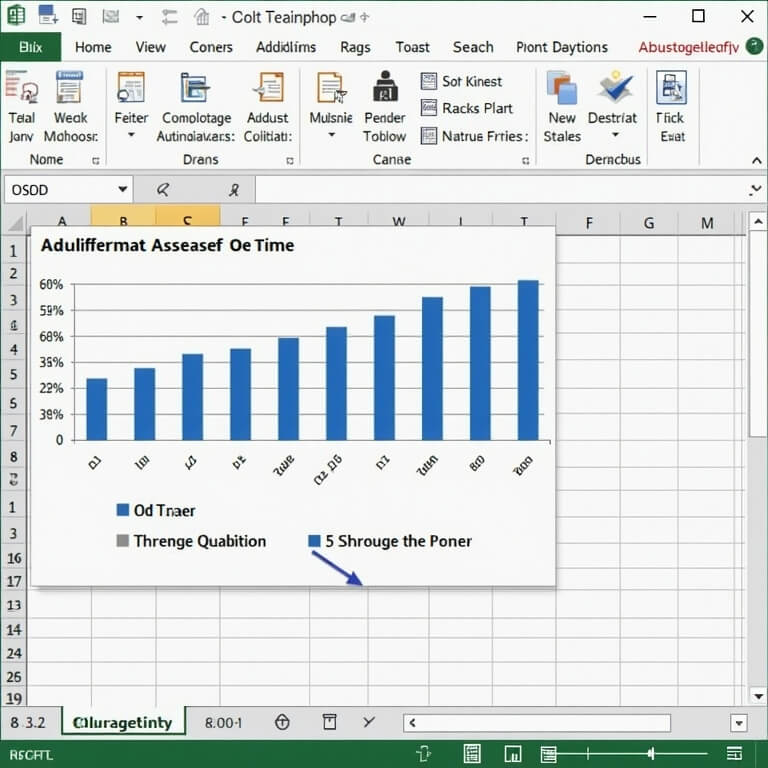
A sales team used DataRobot’s Excel Add-In to predict future sales trends based on historical data. By automating the model building process, they were able to generate accurate forecasts within hours rather than days or weeks. This allowed them to make informed decisions about inventory management and marketing strategies.
A financial analyst employed Power BI’s natural language processing capabilities to quickly extract key insights from large datasets stored in Excel. By asking questions like “Show me revenue trends over the past year,” they could obtain instant visualizations, saving significant time compared to manual data analysis methods.
The integration of AI tools with Microsoft Excel opens up a world of possibilities for enhancing productivity and gaining deeper insights into your data. Whether you need to automate repetitive tasks, perform predictive analytics, or create sophisticated dashboards, there is an AI solution tailored to meet your needs. By exploring the top tools discussed in this article and following best practices for integration and deployment, Excel users can elevate their data analysis capabilities to new heights.


